Put it on your site
The chat assistant is one line of code. Put it on every page of your website once; after that, everything you change in the dashboard reaches your site by itself.
Where your code is
In the dashboard open Widget, then Placement. Your line is there with your site's own key, ready to copy. The setup steps on Overview show the same code while you set up.
<script src="https://beacel.com/widget.js" data-beacel="k9-x_Q2a" async></script>The sample code shows a placeholder key. Copy your own from the dashboard: Widget, then Placement.
Which way fits
A button in the corner
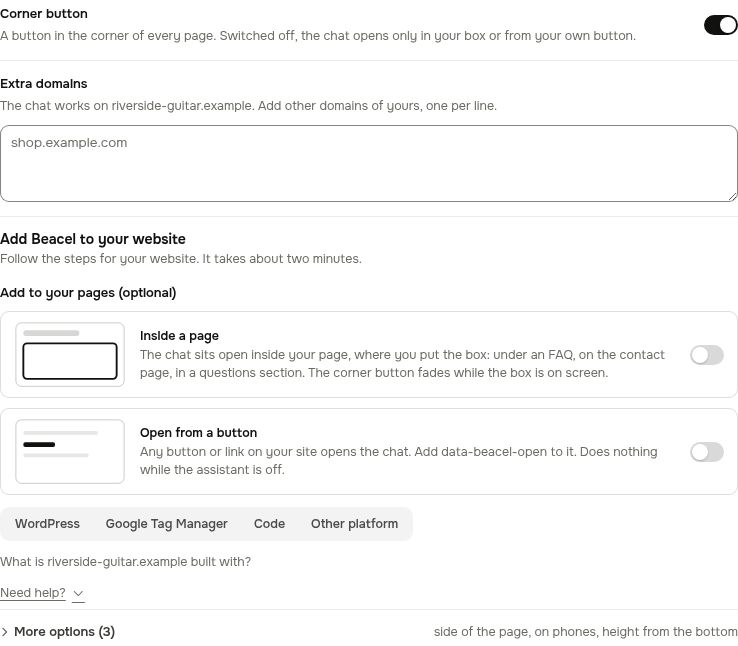
The line above and nothing else: a button in the corner of every page opens the chat. This is what most sites want.
The chat inside a page
For a contact page, put this where the chat should appear, in addition to the line:
<div data-beacel-inline></div>Or, as a full-width section with a heading above the chat:
<div data-beacel-inline="section"></div>The corner button fades out while the chat in the page is on screen; both share one conversation.
Your own button
Any button or link of yours can open the chat. Add data-beacel-open to it, for example:
<button type="button" data-beacel-open>Write to us</button>Steps for your website
Pick the tool your website is built with. Beacel recognises most of them when it reads your site and suggests the right one in the setup steps.
- WordPress
- Wix
- Squarespace
- Webflow
- Shopify
- Hostinger Website Builder
- Google Tag Manager
- Custom website (plain HTML, PHP)
Check that it works
Open your website once, then press Check my site in the dashboard. It can take a few minutes: Not detected yet. It shows up here a few minutes after your site loads the code.
If the check still does not find it:
The code is on your site, but we haven't seen the chat run yet. Open your site once, then press Check again.
If your cookie banner blocks scripts until a visitor agrees, mark Beacel as necessary in its settings.
Added the code through a tag manager or a script that loads later? This check reads your page's HTML and can't see it. Open your site once: it shows as installed when the chat reports in.
Questions
Write to hello@beacel.com.