Leads and export
Every visitor who leaves their details becomes a lead in the Leads tab. You get an alert at the same moment (see Lead alerts); this tab is where you keep track of them.
The list
Each lead shows who it is, what they want, the language they wrote in and when. Click a lead to see what the visitor wrote in their own words, call or message them, and add notes.
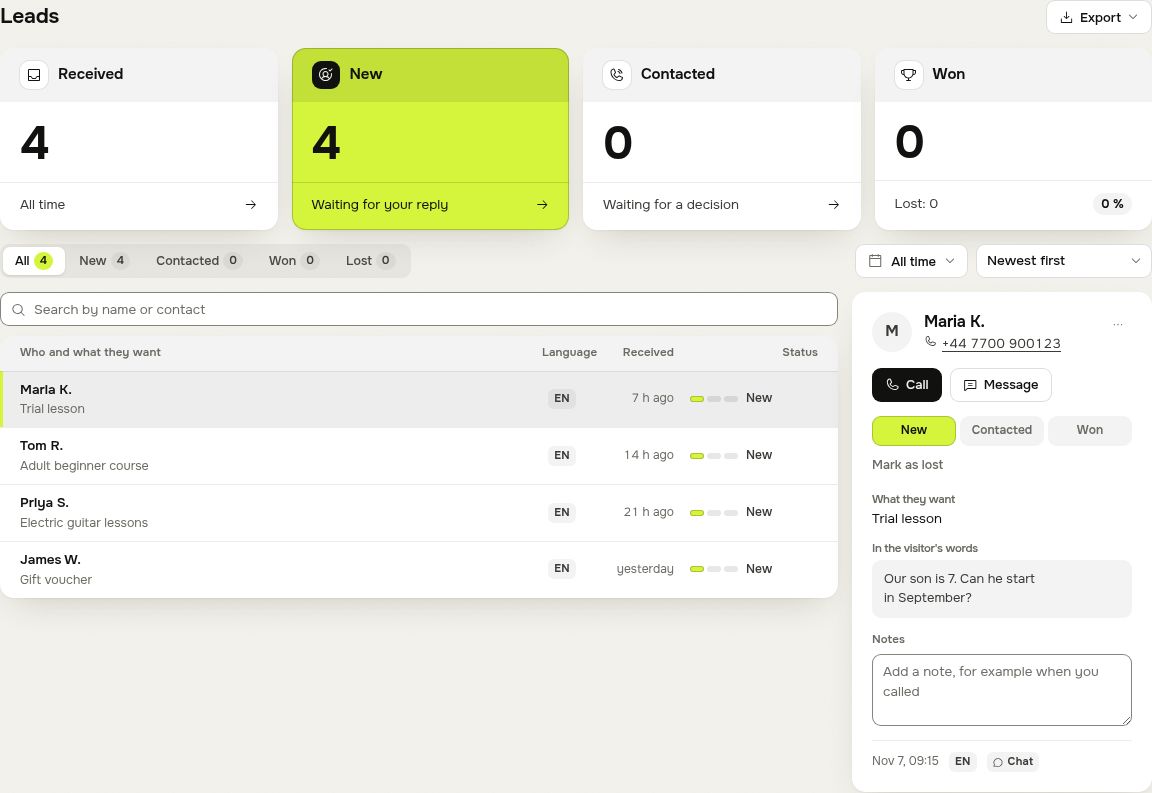
A lead moves through four states: New, Contacted, Won and Lost. Set it on the opened lead; the row above the table filters by state.
Period
The period button above the table chooses which leads you see: All time, Today, 7 days, 30 days, This month, Last month, This year, Last year, or Pick days on a calendar.
Order
Next to it, choose Newest first, Oldest first or By name.
Export
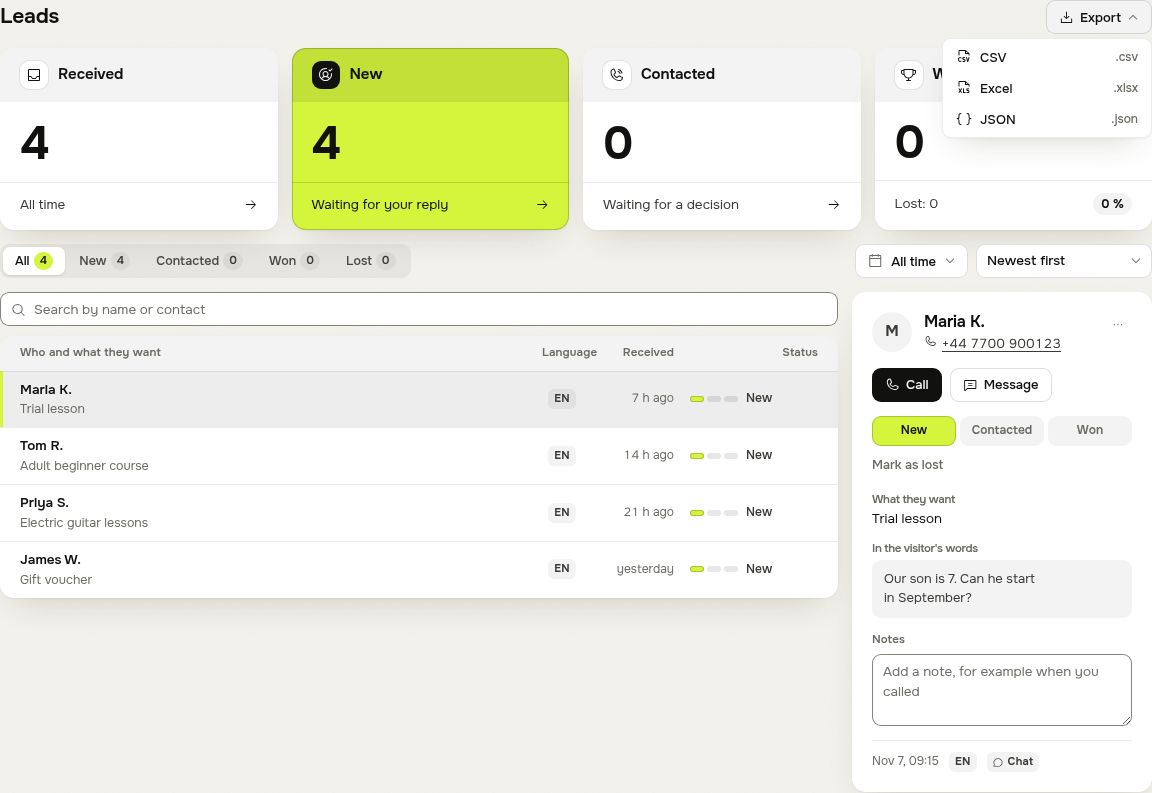
Press Export and choose CSV, Excel or JSON. The file holds the leads the table shows now: the state, the period, the search and the test-leads switch you chose, at most the 500 newest.
In CSV and Excel each lead is one row with these columns: Date, Name, Phone, E-mail, Contact (as the visitor typed it), Interest, Details, Language, a link to the conversation, the state, your notes and the Source. JSON holds the same fields with English names and dates in ISO format. Excel files open in Excel, Numbers and Google Sheets; CSV suits any other tool.
12 or 24 hour times
Times in your leads and chats follow your account's setting: in the Account tab, under Preferences, choose Time format: 24 hour or 12 hour.
Questions
Write to hello@beacel.com.